
To change your website from root domain (https://mydomain.com) to a www domain (https://www.mydomain.com), do the following steps:
Edit WordPress and Site URL
1. In the WordPress dashboard, navigate to Settings > General
2. Change the following fields to the new domain:
a. WordPress Address (URL)
b. Site Address (URL)
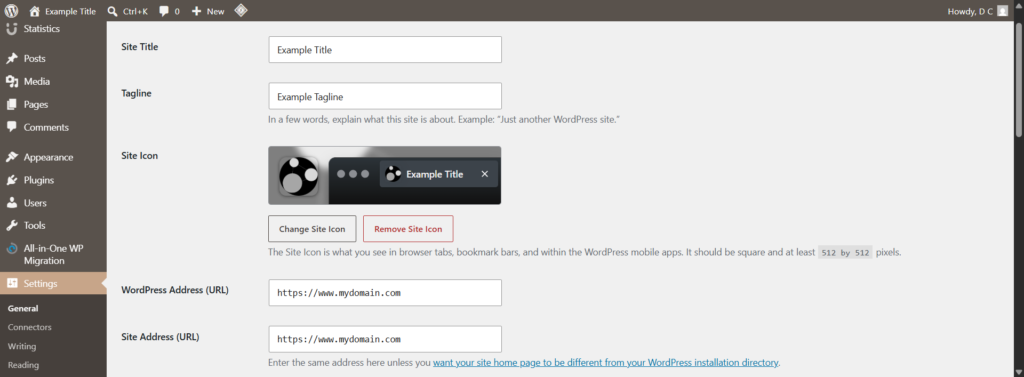
You may experience some redirections getting back to the site. In the URL bar, simply enter your new site domain followed by wp-admin (eg. https://www.mydomain.com/wp-admin).
Search and Replace Files
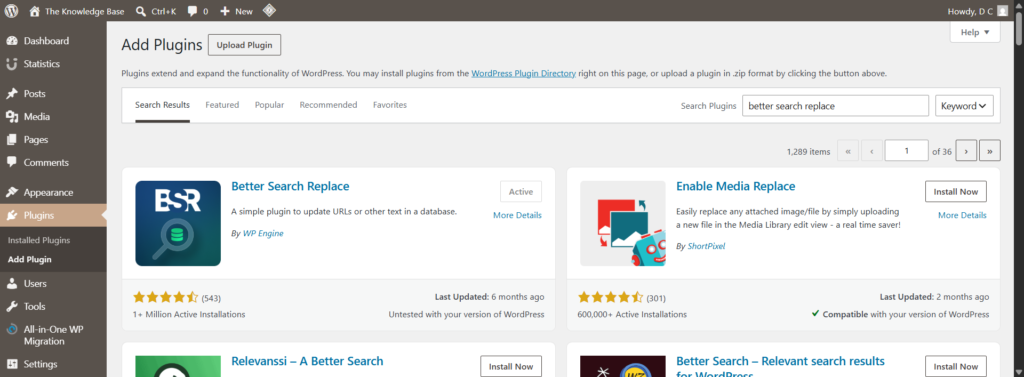
1. Install the plugin Better Search Replace:
a. Navigate to Plugins > Add Plugin
b. Search for Better Search Replace
c. Click “Install Now”
d. Click “Activate”
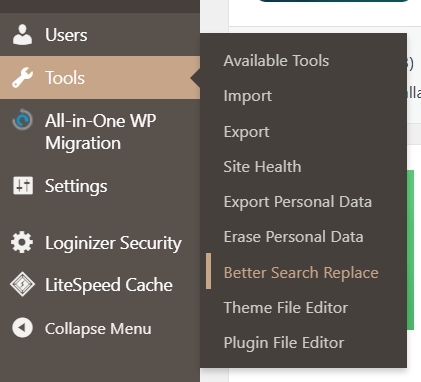
2. Go to the Better Search Replace tool page:
a. Navigate to Tools > Better Search Replace
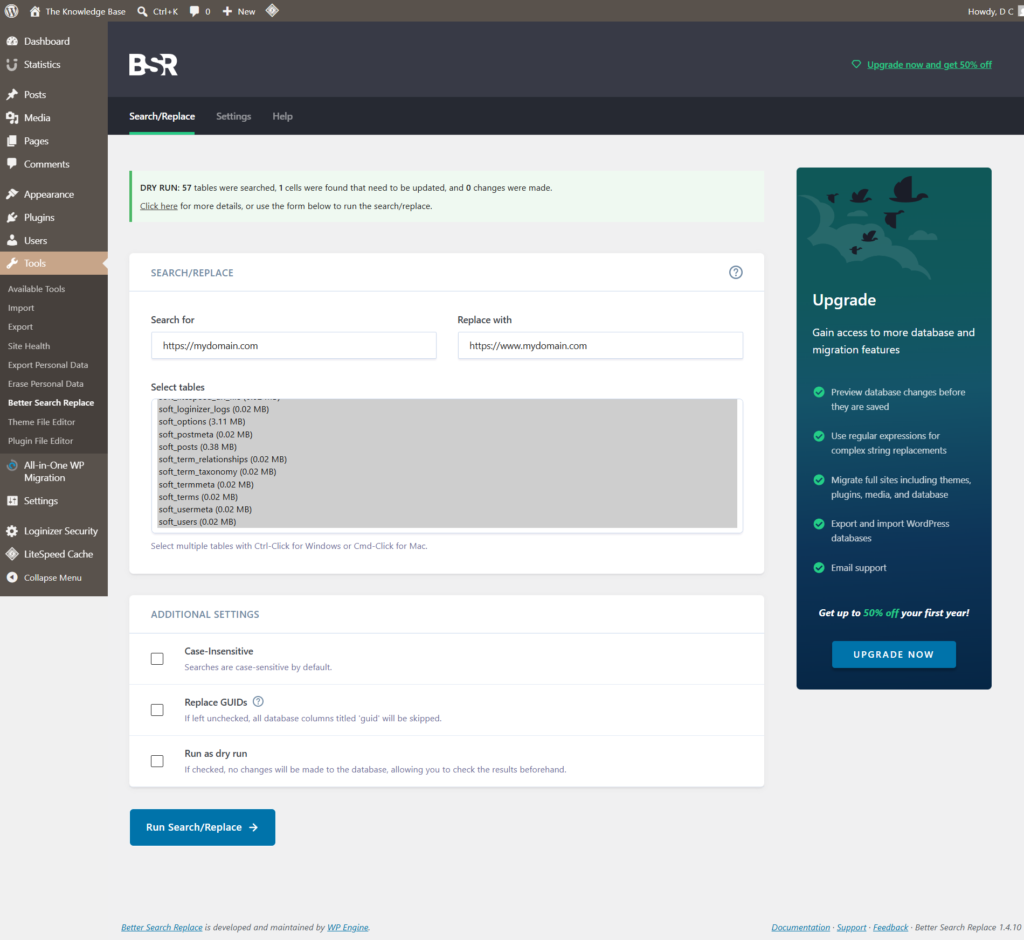
3. Use the text boxes to replace all instances of your old URL with the new one:
a. Under “Search for”, key in the old URL (eg. https://mydomain.com)
b. Under “Replace with”, key in the new URL (eg. https://www.mydomain.com)
c. In the list under “Select tables”, select all tables. A good trick on Windows is to select the first entry, then scroll down to the last entry and Shift + Click the last entry
d. You may choose to test the result without changing anything first:
i. Enable the “Run as dry run” checkbox
ii. Click “Run Search/Replace” to see the number of tables and cells that will be changed
iii. Disable the “Run as dry run” checkbox
f. Finally, click “Run Search/Replace” to do a full search and replace
Redirect the root domain to the www domain
- Go to the cPanel’s File Manager and edit the .htaccess file. If you cannot find or see the .htaccess file, follow the steps below:
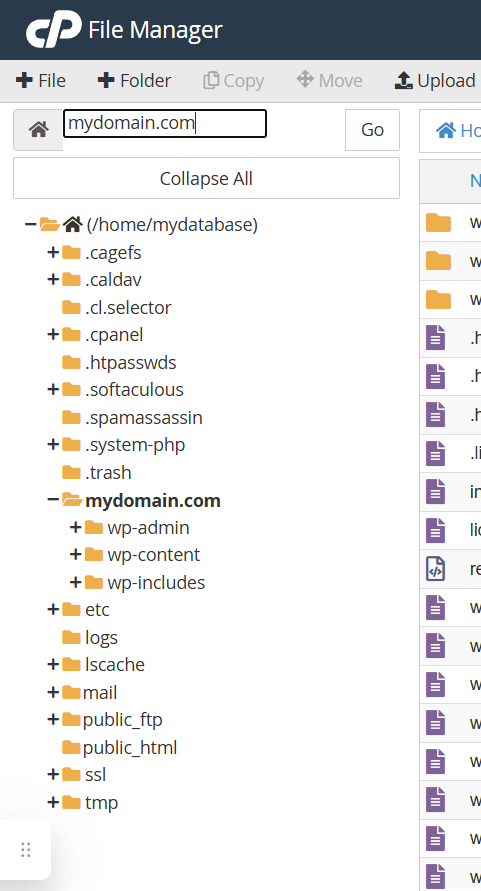
a. In the file manager sidebar, navigate to (/home/databasename) > mydomain.com
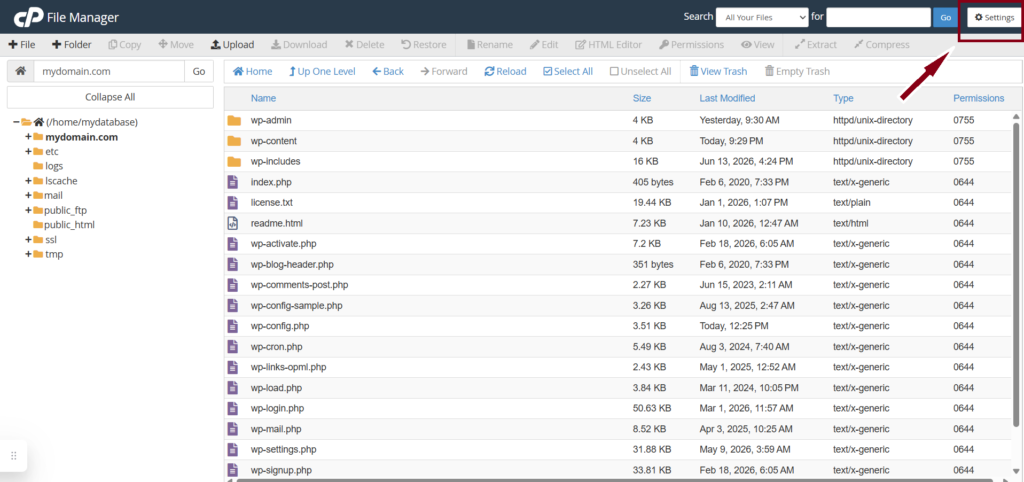
b. In the top right corner, click “Settings”
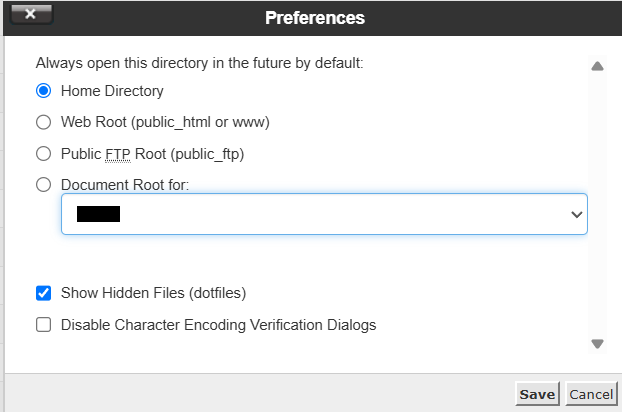
c. Enable the checkbox “Show Hidden Files (dotfiles)”
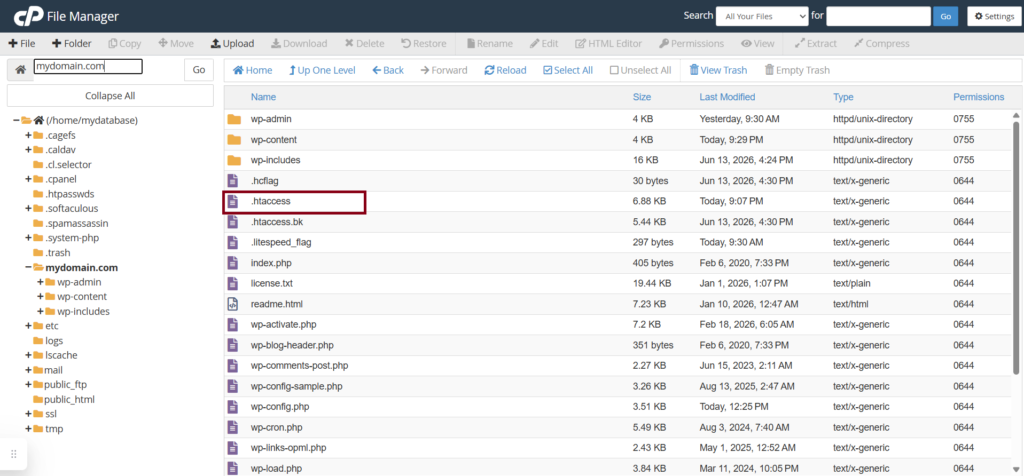
d. The .htaccess file should now be visible
2. Edit the .htaccess file
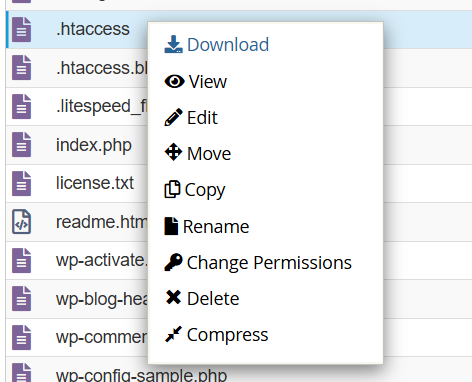
a. I would recommend taking a backup (Right Click > Download)
b. Open the editor (Right Click > Edit)
c. At the top of the file, add this block of code, replacing “mydomain” with your actual domain
RewriteEngine On
RewriteCond %{HTTP_HOST} ^mydomain.com [NC]
RewriteRule ^(.*)$ https://www.mydomain.com/$1 [L,R=301]3. Click “Save Changes”

Your www subdomain and redirection should now work.
Happy site-building!
References
To WWW or Not to WWW? How to Add WWW to Your URLs in WordPress https://pagely.com/blog/www-not-www-add-www-urls-wordpress/
How to redirect non-www URLs to www? https://www.siteground.com/kb/how_to_redirect_nonwww_urls_to_www